How do I edit a video in SignStudio with Filmmaker?
Quick answer: DigitalSignage.com includes Filmmaker, a multi-track timeline video editor inside SignStudio, on the Plus+ and Enterprise plans. Open it from the library (filmmakers, then create filmmaker), from the EDIT button on a video in Resources, or from edit video on a video component in a scene. Trim and split clips on the timeline, add titles, shapes, transitions, zoom and pan moves and audio effects from the library tabs, then export: the MP4 is made in your browser, saved to your files, and update the video swaps it into every scene that uses it.
Key facts
- Filmmaker is on mediaCLOUD Plus+ (from $3 per screen per month as of November 2026) and Enterprise, in intermediate and advanced mode; a free account sees an upgrade prompt.
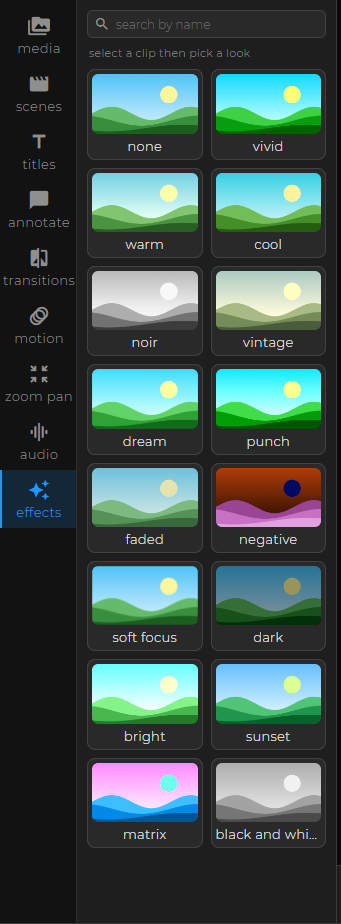
- The library has 24 title styles, 48 shapes, arrows and callouts, 20 transitions and 16 one-click looks.
- Clip speed runs from 0.25x to 4x in nine steps, with keep the pitch so voices do not sound sped up.
- The audio tab has five effects: compression, emphasize, sound fade in, sound fade out and a noise filter for hum and hiss.
- The zoom pan panel zooms from 25 to 800 percent, and each move becomes an arrow on its clip that you can drag.
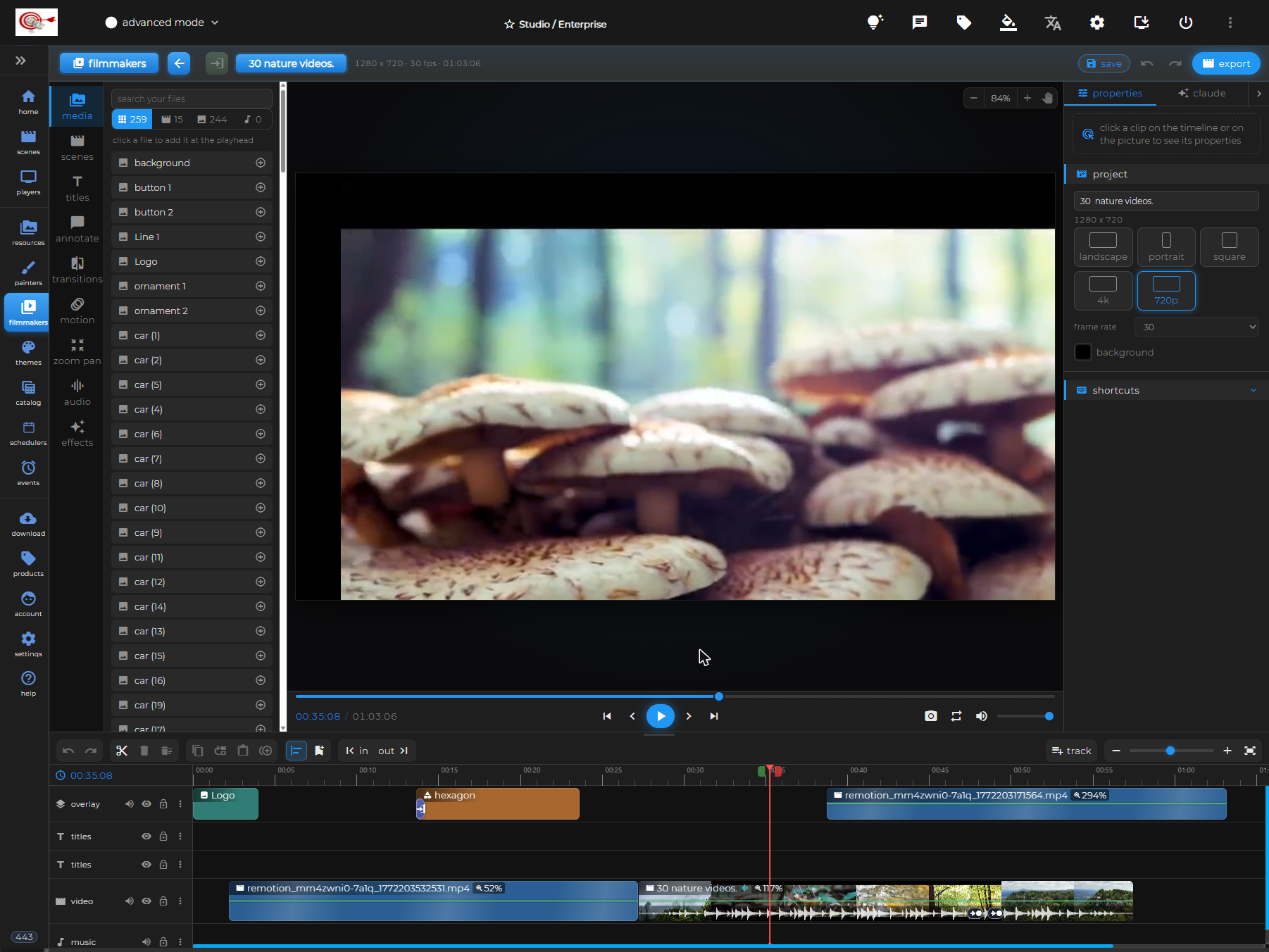
- A new filmmaker starts at 1920 x 1080 and 30 fps unless you pick portrait, square, 4K or 720p and another frame rate (24, 25, 50 or 60 fps).
- Filmmaker is designed for signage videos of 10 to 60 seconds and supports clips up to about 5 minutes.
Last updated November 24, 2026. Sources: the SignStudio Filmmaker product page and the SignStudio interface itself; screenshots show the editor in advanced mode.
What is Filmmaker in SignStudio?
Filmmaker is the timeline video editor built into SignStudio, the DigitalSignage.com content editor. It has several tracks of video, pictures, sound, titles and shapes, a live preview where you move and resize items directly on the picture, a properties panel, and an export to MP4 that is made in the browser and saved to your account's files.
One filmmaker is one project, and one project has one video. That is the idea that makes it different from a desktop editor: when you change the video and export again, Filmmaker can switch every scene that plays the old file to the new one, so a corrected price or a new promotion reaches every screen without editing each scene by hand. The Filmmaker product page has the overview.
Who can use Filmmaker?
Accounts on Plus+ and Enterprise can use it, in intermediate and advanced mode; simple mode has no way in. A free account that tries to open it gets the upgrade dialog and stays where it was. A user who does not want the menu item can hide it under Settings, filmmaker, show in menu, which hides the item only.
| Plan | Filmmaker | Price as of November 2026 | Example cost |
|---|---|---|---|
| DigitalSignage.com free plan | Not included | $0 for the first 3 screens, forever | 3 screens: $0 |
| mediaCLOUD Plus+ | Included | $3 per screen per month, billed annually; every screen is billed once an account has 4 or more | 10 screens: $360 a year |
| Enterprise | Included | Dynamic pricing in the public calculator | Quoted per account |
Bottom line: Filmmaker comes with Plus+ at no extra charge, so a 10-screen account gets it inside the $360 a year it already pays.
How do I open Filmmaker?
There are three ways in (the library, Resources and the scene editor), and all of them open the same editor. A project opened from a video reopens the newest filmmaker started from that video, or creates one, so you do not end up with duplicates for the same file.
| Starting point | What to click | What opens |
|---|---|---|
| Left menu, library | filmmakers, then create filmmaker | A new, empty project after you choose name, format, frame rate and background |
| The filmmakers list | Double click a row, or select it and press open | That project |
| Resources | Select one video (MP4, M4V or WebM) and click EDIT | The newest filmmaker for that video, or a new one |
| Scene editor | Select a video component, then edit video in its properties | The filmmaker the video came from, or a new one |
Bottom line: start from the library for a new video, and from Resources or a scene when you want to change a video that is already playing.
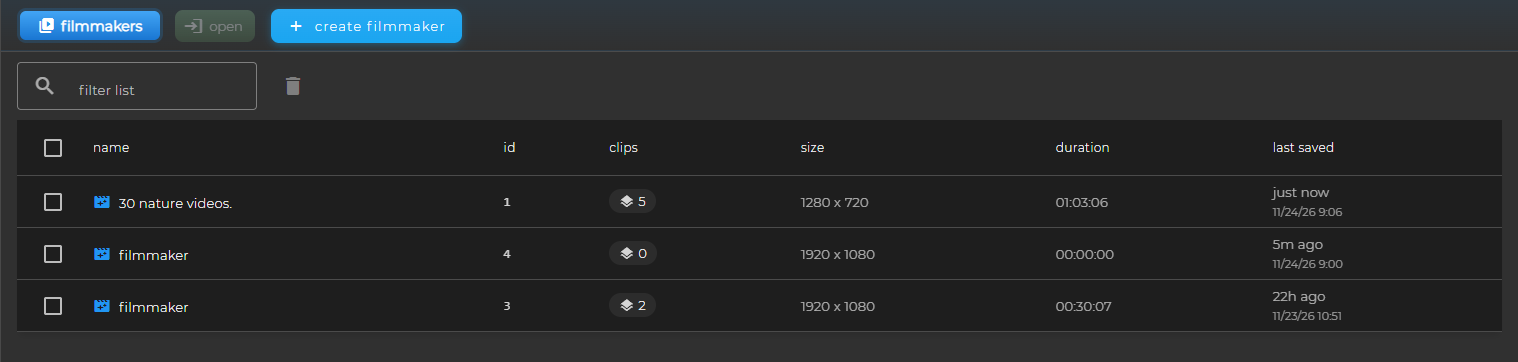
A video component's properties show which filmmaker a video came from, and edit video on that file opens it. Edit video is not offered for external videos linked from another site, and pictures still open in the painter, not in Filmmaker.
How does the timeline work?
The timeline stacks tracks of video, overlay, titles and audio, and each clip shows a filmstrip of its pictures and the waveform of its sound so you can see where to cut. Drag a clip to move it, also between tracks; drag its edges to trim it; and clips snap to edges and to the playhead.
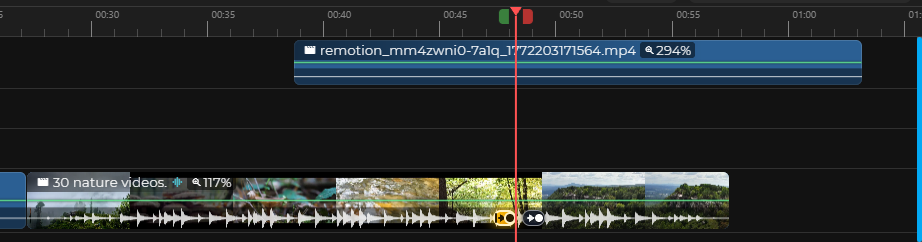
Every track can be muted, hidden or locked, and you can add tracks, rename them and change their order. Markers note a moment, and an in and out range lets you cut a section out of several tracks at once. Each step can be undone and redone. The shortcuts below cover most of the work.
| Action | Shortcut |
|---|---|
| Play or pause | Space |
| Split at the playhead | S |
| Delete and leave a gap | Del |
| Delete and close the gap (ripple delete) | Shift+Del |
| Copy, cut, paste at the playhead, duplicate | Ctrl+C, Ctrl+X, Ctrl+V, Ctrl+D |
| Undo, redo | Ctrl+Z, Ctrl+Y |
| Add a marker | M |
| Start and end a range at the playhead | I and O |
| Save | Ctrl+S |
Bottom line: S to split and Shift+Del to close the gap do most of the trimming in a signage video.
The camera button under the preview saves the current frame as an image in your files, which is a quick way to make a matching still for a playlist.
What is in the library tabs?
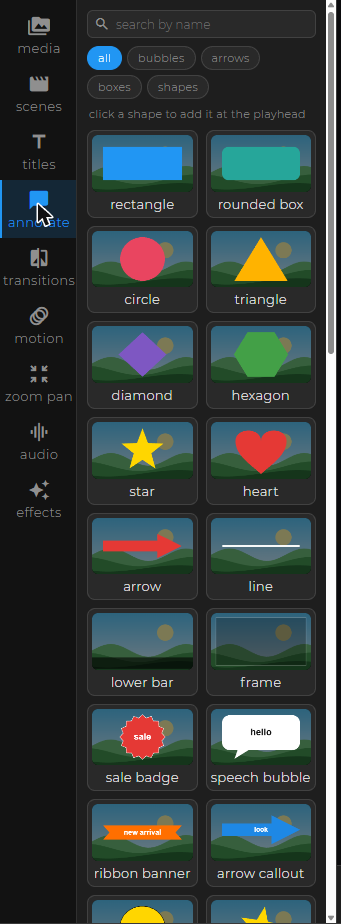
The left rail holds the library: media, scenes, titles, annotate, transitions, motion, zoom pan, audio and effects. Clicking a tile adds it at the playhead, or applies it to the selected clip, so most edits are one click followed by a tweak in the properties panel on the right.
| Tab | What it holds | Count |
|---|---|---|
| media | Every video, picture and sound file in your account, with a search box | Your files |
| scenes | A picture of any of your scenes, added at the playhead | Your scenes |
| titles | Big title, lower third, caption, typewriter, neon sign, sale, breaking news, corner tag, price, credits and more | 24 styles |
| annotate | Shapes, arrows, boxes, speech and thought bubbles, ribbons, badges | 48 presets |
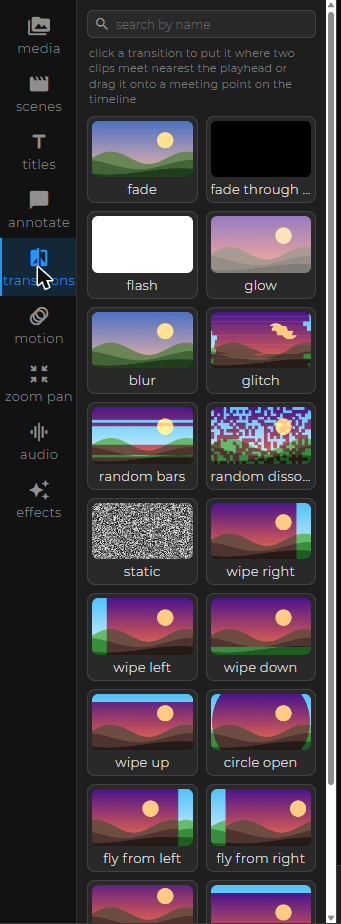
| transitions | Fade, dip to black, dip to white, glow, blur, glitch, random bars, dissolve, wipes, circle open, slides and zooms | 20 |
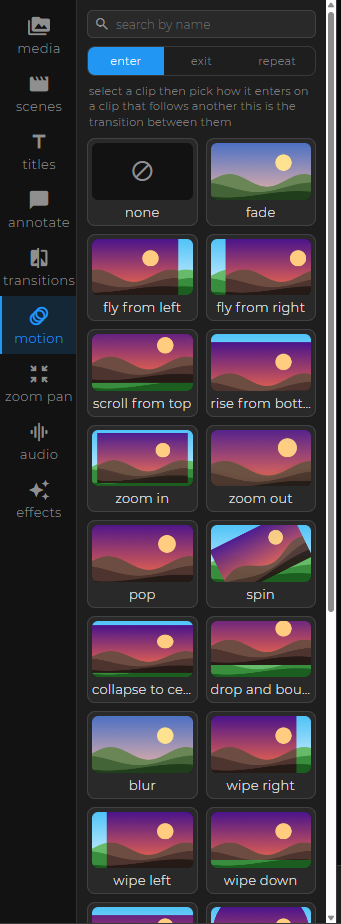
| motion | Enter and exit effects, and repeat motion such as pulse, float, wiggle, swing, bounce, blink and spin | 7 repeat motions |
| zoom pan | Zoom and pan moves on a video or image clip | As many as you need |
| audio | Compression, emphasize, sound fades, noise filter, and clip speed | 5 effects, 9 speeds |
| effects | One-click looks such as vivid, warm, cool, noir, vintage and black and white, plus sliders | 16 looks |
Bottom line: titles, annotate and transitions cover most signage edits, and every tile is one click away from the playhead.
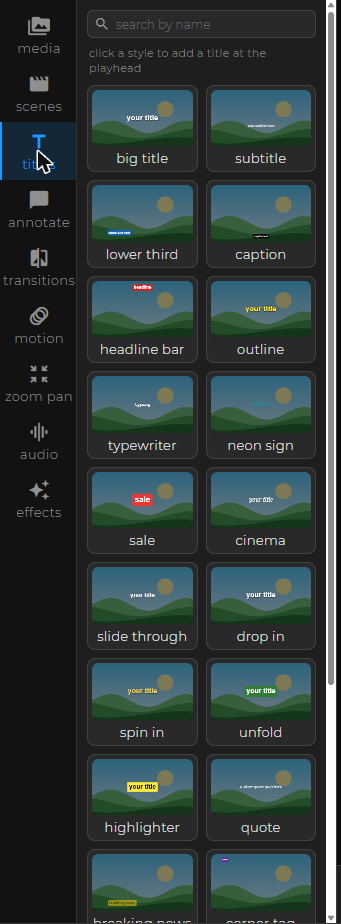
Titles and shapes can be edited directly on the preview: text, font, size, bold, italic, shadow, color, outline and a box behind the text. A shape can carry text inside it, which is how the sale badge and the arrow labels work.
How do I add a transition?
Put two clips end to end on one track, then click a transition in the transitions tab: it lands where the two clips meet nearest the playhead. You can also drag a tile onto the timeline; the meeting point it will land on lights up, and an existing transition there is shown as replace transition.
On the timeline a transition is a block over the cut. Its left handle sets how long it plays before the cut and its right handle how long after, and a new transition gets half a second on each side. Select the block to change its type or length, play it, or remove it; removing keeps both clips.
The motion tab is separate: it gives any clip an enter effect, an exit effect and a repeat motion while it is on screen. Select the clip first, then pick the motion.
How do I zoom in on part of a video?
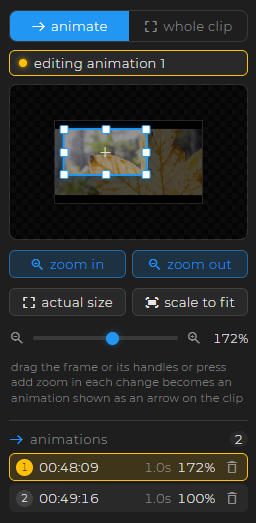
Use the zoom pan tab: put the playhead on a video or image clip, then drag the frame in the panel, or drag one of its handles to zoom. Each change becomes a zoom animation that arrives at the playhead, with a slow start and a slow stop, and it shows on the clip as an arrow you can drag.
The panel has actual size, scale to fit and a zoom slider from 25 to 800 percent, plus a list of the clip's animations. A colored line above the picture says what a change applies to: the clip's start framing, the animation you are editing, or a new animation at the playhead. Zoom in and zoom out buttons add a move in one click.
Moves stay on the right pictures when you split or trim a clip or change its speed. Rotation and opacity do not animate, and titles and shapes do not zoom or pan; they keep their enter, exit and repeat motion.
How do I fix the sound?
Select a video or audio clip and open the audio tab. Click an effect to add it to the selected clips and click it again to remove it; its settings appear in the properties panel. A lit tile means the selected clips have that effect.
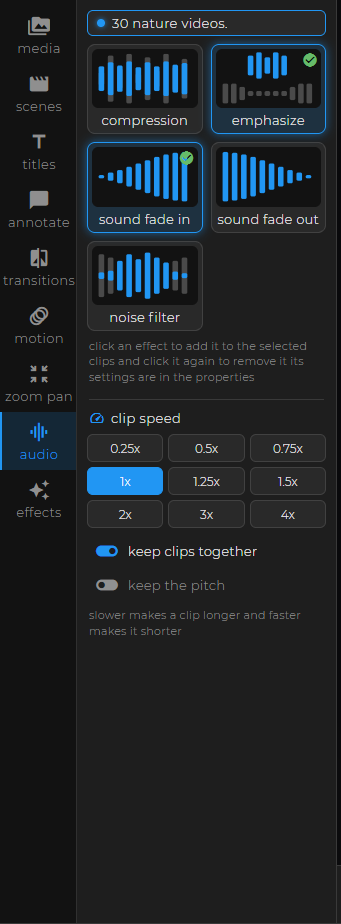
Compression evens out the loud and quiet parts. Emphasize turns the other tracks down while the clip plays, which is how music dips under a voice. Sound fades ease the sound in and out without fading the picture. The noise filter cuts hum below one frequency and hiss above another; it is a filter and does not clean noise from under a voice.
Every video or audio clip also has a volume line, and audio points on it change the level over the clip. Right-click a clip and choose add audio point, then drag the points.
Worked example: speed and emphasize on a 20-second voice clip
- A 20-second clip set to 2x plays in 20 divided by 2 = 10 seconds.
- With keep clips together switched on, the later clips on that track move left by 20 minus 10 = 10 seconds, so no gap opens.
- Keep the pitch holds the voice at its normal pitch; without it, doubling the speed raises the pitch by one octave.
- Emphasize at 0.7 on the voice turns every other track down by 70 percent, so music plays at 100 minus 70 = 30 percent of its level.
- The music goes down over 0.3 seconds before the voice starts and comes back over 0.3 seconds after it ends.
How do I export and update the video on my screens?
Click export, check the size, length and file name, and press start export. The MP4 is made on your computer in the browser, in four stages (loading the source files, mixing the sound, rendering the video, finishing the file), and is then saved to your files. Keep the tab open until it finishes.
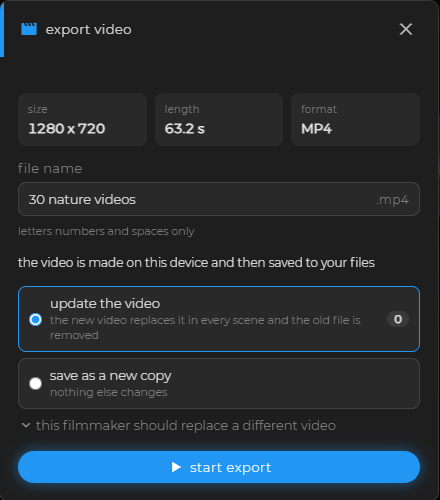
A first export becomes the project's video. After that the dialog offers two choices, and the default is the one that saves the most work.
| Choice | What happens to scenes | What happens to the old file |
|---|---|---|
| update the video (default) | Every scene component that uses the video switches to the new file, and those scenes are saved | Moved to the resources trash, unless something else still uses it; the file the project started from is never removed |
| save as a new copy | Nothing changes | Nothing is removed |
| this filmmaker should replace a different video | Scenes using the video you pick switch to the new file | That file is replaced but not removed |
Bottom line: use update the video for a correction that should reach every screen, and save as a new copy for a second version, such as a portrait cut.
Exporting needs a current Chrome or Edge; another browser shows a message saying so. If the upload to your files fails, the dialog offers a download so the work is not lost. Once scenes are updated, publish as usual and the screens download the new file.
How is my work saved?
Saving is explicit: the save button in the top bar, Ctrl+S, the start of an export, and leaving the editor inside the studio all save the project to your account. Changes made in between are also kept in this browser, and if you return before saving, Filmmaker restores them and tells you so.
A project keeps references to your files, not copies. If a file it uses is deleted from Resources, that clip shows as offline and the project still opens, so the rest of the edit is safe.
Can I ask Claude to make the edit?
Where enabled, Filmmaker has a Claude tab next to the properties panel that edits by request. Type a change such as "cut the first 3 seconds" or "make the whole video black and white", and the change is made as one step that a single undo takes back.
What can Filmmaker not do yet?
Filmmaker is built for short signage videos, not feature films. These are the limits today, so you can plan around them.
- Captions as a separate track are not built; put key words on screen with the titles tab.
- Crop and chroma key (green screen) are not part of Filmmaker today.
- Keyframes are limited to zoom and pan; rotation and opacity do not animate, and titles and shapes do not zoom.
- Freeze frame, recording inside the editor and a phone layout are not built.
- The noise filter cuts hum and hiss bands; it does not remove noise from under a voice.
- Clips up to about 5 minutes are supported; the sweet spot is 10 to 60 seconds.
If it still does not work
- Filmmaker is not in the menu: check the plan is Plus+ or Enterprise, switch SignStudio to intermediate or advanced mode, and check Settings, filmmaker, show in menu.
- EDIT in Resources does not open Filmmaker: select exactly one MP4, M4V or WebM video; pictures open in the painter.
- A clip shows as offline: its file was deleted or renamed in Resources. Add the file again from the media tab.
- The export will not start: use the latest Chrome or Edge, keep the tab in front, and close other heavy tabs.
- A scene still plays the old video: open the export result message; if it says the scenes could not be switched, select the video component in the scene and pick the new file, then publish.
- The screen still shows the old file after publishing: send Refresh Content to that screen and take a screenshot to confirm.
For anything else, ask support at support@digitalsignage.com or on live chat at https://chat.digitalsignage.com/.
Frequently asked questions
How do I edit a video in SignStudio with Filmmaker?
Open the library and choose filmmakers, then create filmmaker, or click EDIT on a video in Resources, or edit video on a video component in a scene. Trim and split on the timeline, add titles, shapes, transitions, zoom and pan and audio effects from the library tabs, save with Ctrl+S, then export. The MP4 is made in your browser and update the video switches every scene that uses it.
Which plans include Filmmaker?
Plus+ and Enterprise, in intermediate and advanced mode. Plus+ is $3 per screen per month billed annually as of November 2026, and every screen is billed once an account has 4 or more, so 10 screens cost $360 a year. The free plan for the first 3 screens does not include Filmmaker.
Does Filmmaker need software installed?
No. Filmmaker runs in the browser inside SignStudio, and the MP4 is made on your computer in the browser and then saved to your files. Exporting needs a current Chrome or Edge.
What happens to my scenes when I export again?
The default, update the video, switches every scene component that uses the video to the new file and saves those scenes, then moves the earlier export to the trash unless something else uses it. Save as a new copy changes nothing else.
How many titles, shapes and transitions does Filmmaker have?
24 title styles, 48 shapes, arrows and callouts, 20 transitions between clips and 16 one-click looks, plus enter, exit and repeat motion for any clip and five audio effects.
Can Filmmaker add captions or remove a green screen?
Not today. Captions, crop, chroma key and keyframes other than zoom and pan are not built yet. Put key words on screen with the 24 title styles instead of captions.
How long can a Filmmaker video be?
Filmmaker is designed for signage videos of 10 to 60 seconds and supports clips up to about 5 minutes. It is not meant for long films.
Related guides
- How do you make a video for digital signage?
- Filmmaker video editor product page
- SignStudio components
- SignStudio scene editor
- Upload, organize and replace media in SignStudio
- Video format support by player
- Aspect ratios for digital signage
Try it on your own screens, free
DigitalSignage.com, which publishes this guide, runs a permanent free plan: the first 3 screens are free forever (no credit card, no ads, no watermark, no time limit), then from $3 per screen per month on Plus+. Once an account has 4 or more screens, every screen is billed, so 10 screens cost $360 a year; Enterprise is priced per screen in the public price calculator. The free DigitalSignage.com SignPlayer runs on Windows, Mac, Android and Android TV, Chrome OS, Raspberry Pi, iPad or any modern web browser, so the hardware you already own usually works. Start free · pricing · How 11 vendors compare on price
Maintained by MediaSignage Inc., operator of DigitalSignage.com since 2006. Product behavior on this page comes from our own SignStudio and SignPlayer documentation; where we do not document a step, this page says so instead of guessing. Last reviewed November 24, 2026.